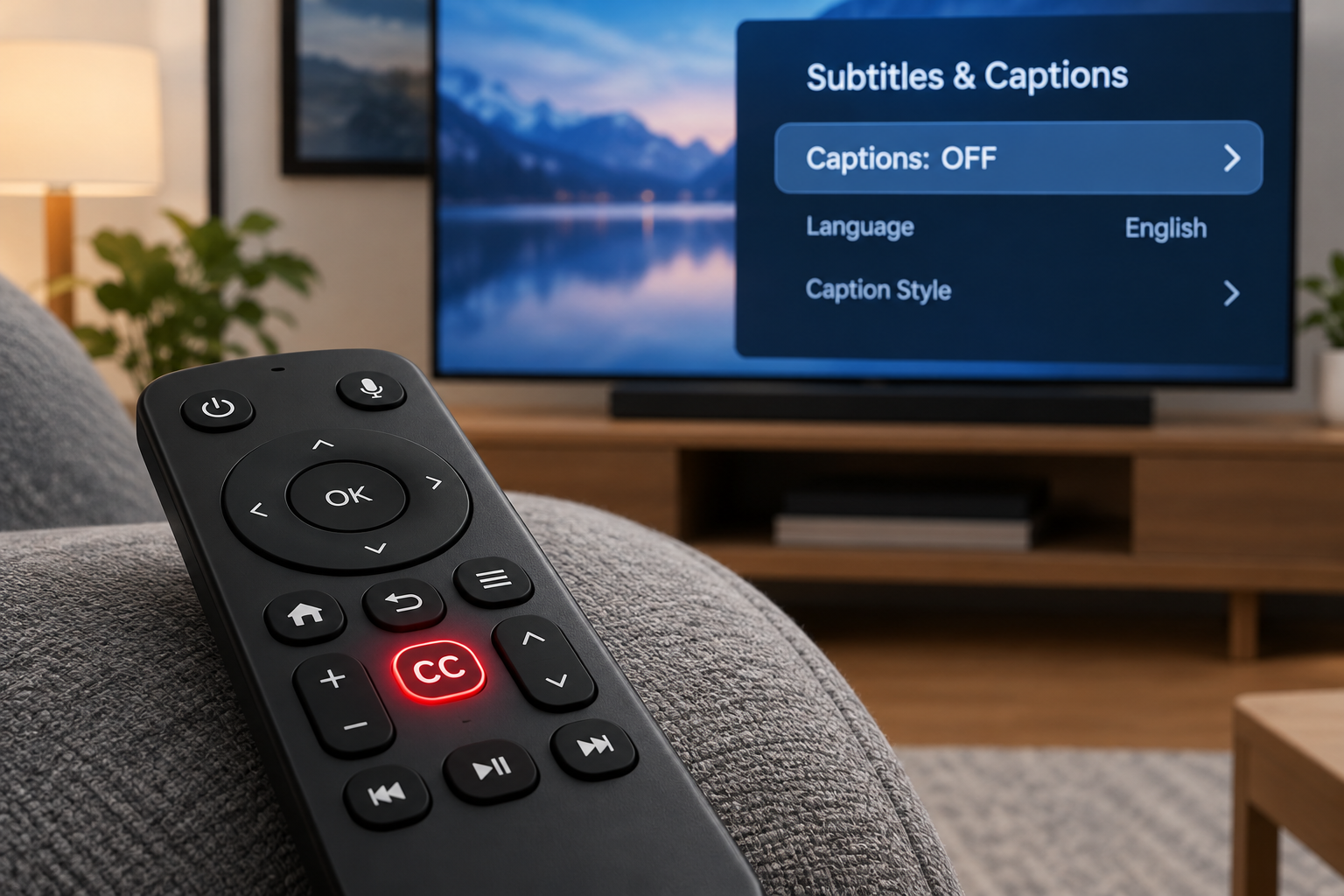
To turn off closed captioning, open the subtitles or CC menu during playback and select Off. If captions keep coming back, a second switch in your device’s Accessibility settings is turning them on by default. Below you’ll find the exact paths for TVs, streaming players, cable boxes, phones, computers and the big apps.
Last checked: October 29, 2026. Menu names shift with software updates. If yours looks different, check Accessibility first.
The Quick Fix That Works Almost Everywhere
Turn captions off in under a minute
- Start playing any video.
- Press the CC, subtitles or speech-bubble button.
- Select Off under Subtitles or Captions.
- If captions return later, open the device’s Settings, then Accessibility.
- Turn off the Captions or Closed Captioning setting there too.
Most people only need step 3. Steps 4 and 5 fix the stubborn cases.
Why Captions Keep Coming Back
Captions can be switched on in several layers at once. Turning off one layer leaves the others active. These are the usual culprits:
- The TV and the cable box both have captions on. Each one can draw its own captions on screen.
- A device-level preference overrides the app. On iPhone and Apple TV, the Closed Captions + SDH setting tells apps to show captions every time.
- “On mute” mode. Some TVs, including Roku models, show captions automatically whenever you mute.
- Profiles. Netflix and other services save caption choices per profile. A family member’s choice won’t carry over to yours.
- Updates. A firmware or app update can occasionally reset your settings.
Smart TVs
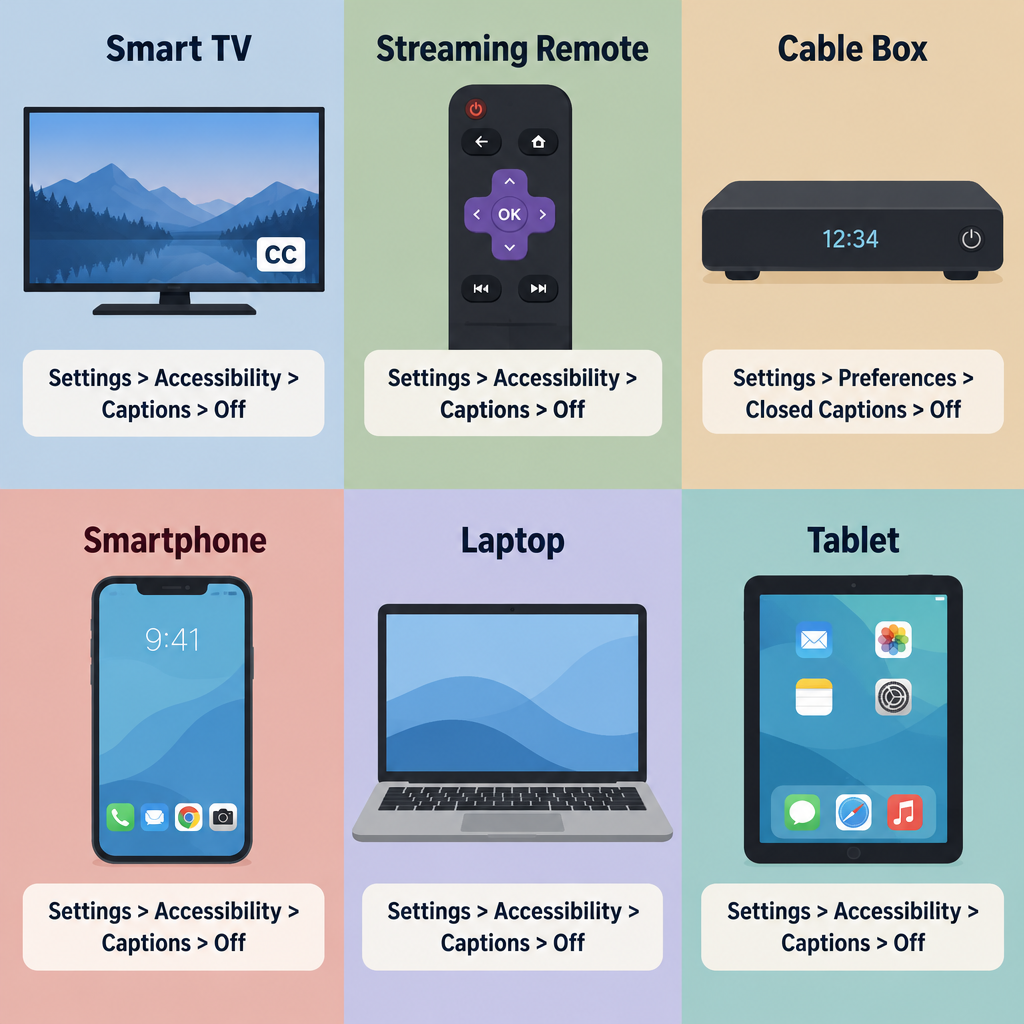
Your TV’s own caption setting sits in Accessibility. Use the path for your brand.
| TV brand or platform | Settings path |
|---|---|
| Samsung | Settings > General (or General & Privacy) > Accessibility > Caption Settings > Caption off |
| LG | Settings > All Settings > Accessibility > Subtitles off (older sets: General > Accessibility) |
| Vizio | Menu > Accessibility > Closed Captions > Off |
| Roku TV (TCL, Hisense and others) | Settings > Accessibility > Captions mode > Off |
| Google TV (Sony, TCL, Hisense) | Settings > System > Accessibility > Captions > turn off |
| Fire TV Edition (Insignia, Toshiba) | Settings > Accessibility > Closed Captioning > Off |
On many Samsung remotes, pressing and holding the Mute button opens Accessibility Shortcuts. That’s a quick way to reach the caption toggle.
Streaming Players
Roku. Press the star (*) button during a show to change captions for that video. For the default, go to Settings > Accessibility > Captions mode. You’ll see four options: Off, On always, On replay and On mute. Pick Off. If you choose On mute, captions will appear only while sound is muted.
Apple TV. Go to Settings > Accessibility > Subtitles and Captioning (on older models, Settings > General > Accessibility > Subtitles and Captioning) and turn off Closed Captions and SDH. During playback, swipe down on the Siri Remote to change subtitles for one video.
Amazon Fire TV. Go to Settings > Accessibility > Closed Captioning and switch it off. During playback, the Menu button opens subtitle options.
Google TV Streamer and Chromecast with Google TV. Go to Settings > System > Accessibility > Captions and turn them off.
Cable and Satellite Boxes
Boxes from Xfinity, Spectrum, DirecTV and others have their own caption setting. It’s usually under Menu > Settings > Accessibility, or behind a CC or Info button on the remote. Xfinity’s voice remote also responds to “turn off closed captioning.”
You may still see captions after you turn them off on the box. If so, they’re coming from the TV. Turn them off in the TV’s Accessibility menu as well.
Streaming Apps
Netflix, Prime Video, Disney+, Hulu, HBO Max, Peacock and Paramount+ all work the same way. Pause or tap the screen, then select the speech-bubble or Audio & Subtitles icon. Under Subtitles, choose Off.
The app usually remembers your choice for that profile on that service. If captions return on Apple devices, the device-level setting is the cause (see below).
YouTube
- Single video: click the CC button on the player, or press C on your keyboard.
- Mobile app: tap the video, then the gear icon > Captions > Turn off captions.
- Account default (desktop): click your profile picture > Settings > Playback and performance. Uncheck “Always show captions.”
On YouTube TV, open the player options and select the CC icon to switch captions off.
Phones and Tablets
iPhone and iPad. Go to Settings > Accessibility > Subtitles & Captioning and turn off Closed Captions + SDH. If text is transcribing all audio on screen, that’s Live Captions. Turn it off under Settings > Accessibility > Live Captions.
Android. Go to Settings > Accessibility > Caption preferences and turn off Show captions. On Samsung phones, look under Settings > Accessibility > Hearing enhancements > Subtitle settings.
Android’s Live Caption is a separate feature. To turn it off, press a volume button and tap the Live Caption icon in the volume panel. You can also switch it off in Accessibility settings.
Computers and Media Players
Windows 11. Live captions turn on and off with Windows + Ctrl + L. The full settings are under Settings > Accessibility > Captions. Captions inside a video are controlled by the player or website, not Windows.
Mac. Go to System Settings > Accessibility > Captions and turn off “Prefer closed captions and SDH.” Live Captions has its own toggle under System Settings > Accessibility > Live Captions.
Chrome. If every video and call shows captions, Chrome’s Live Caption is probably on. Go to Chrome’s menu > Settings > Accessibility and turn off Live Caption.
Media players:
– VLC: Subtitle > Sub Track > Disable
– QuickTime Player: View > Subtitles > Off
– Windows Media Player: select the CC button and choose Off
Change Captions Instead of Removing Them
Many people turn off captions because they’re too large or in the wrong language. You can fix both instead.
- Language: in the app’s subtitle menu, choose the language you want. You can also select an audio track without subtitles.
- Size and style: most TVs and phones let you change caption font, size, color and background. Look in the same Accessibility menu covered above.
For more on how closed captioning works on TV and online, see our explainer.
Hearing tip
If a family member relies on captions, give them their own streaming profile. Then their settings and yours won’t keep overriding each other.
Captions You Can’t Turn Off
Some text is part of the video itself, so no setting will remove it.
- Open captions are burned into the picture. Some social clips and older broadcasts use them.
- Forced narrative subtitles translate brief foreign-language lines or on-screen signs. They appear even with subtitles off, because the creator considers them part of the story.
See a professional
If you’ve started needing captions because speech sounds muffled, book a hearing test with an audiologist. Sudden hearing loss in one or both ears is a medical emergency, so get same-day care.
FAQ
How do I turn off closed captioning with my TV remote?
Press the CC or subtitles button during playback and select Off. If your remote has no CC button, press Menu or Settings and open Accessibility.
Why do captions come back after I shut them off?
Usually a second layer is still on. That’s often the cable box, a device-level preference, or an “On mute” mode. Turn captions off in each layer you use.
How do I remove closed captioning on YouTube for good?
On desktop, go to Settings > Playback and performance and uncheck “Always show captions.” Also check your phone’s or TV’s caption setting, because YouTube follows it.
Are closed captions the same as subtitles?
Not quite. Closed captions include sound cues like [door slams] for viewers who are Deaf or hard of hearing. Subtitles usually show dialogue only. Most menus manage both from the same place.
How can I turn off closed captioning on Netflix everywhere?
Netflix saves your choice per profile, so switch subtitles off once in your profile. If captions persist on an Apple device, turn off Closed Captions + SDH in that device’s Accessibility settings.