Category: Captions & Apps

  • Closed Captioning vs Subtitles and Why the Difference Matters

    Closed Captioning vs Subtitles and Why the Difference Matters

    Closed captioning and subtitles look the same on screen, but they are built for different viewers. Captions assume you can’t hear the audio. Subtitles assume you can hear it and don’t understand the language. This guide compares closed captions, subtitles, SDH and open captions, then helps you choose the right one on your TV, your phone or your own videos.

    Last updated: October 29, 2026

    Closed captionsFor viewers who can't hear
    SubtitlesFor viewers who can't understand
    SDHCaptions in subtitle form
    Open captionsBurned in, always on
    Best for accessibilityCaptions or SDH

    What’s the Difference Between Closed Captioning and Subtitles?

    The difference comes down to one question: what does the text assume about the viewer?

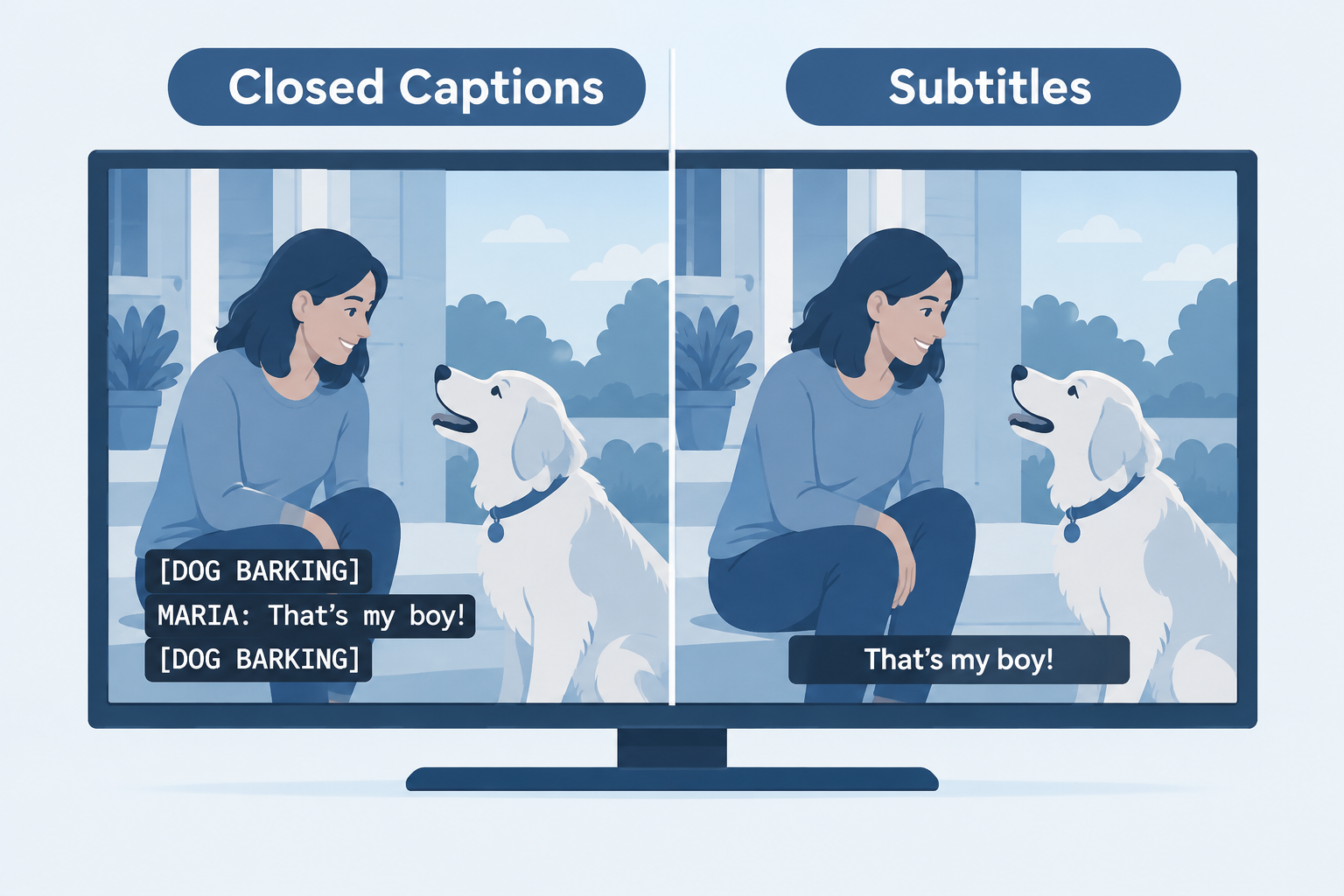
    Closed captions assume the viewer cannot hear the soundtrack. They transcribe the dialogue and also describe everything else the audio carries: who is speaking when they are off screen, music, a door slamming, a phone buzzing, a sarcastic tone. A good caption track gives a Deaf or hard of hearing viewer the same information a hearing viewer gets through their ears.

    Subtitles assume the viewer can hear just fine but doesn’t understand the spoken language. A hearing viewer watching a Korean drama already hears the gunshot and the swelling score, so subtitles only translate what people say. Sound effects and speaker labels are left out because they would be redundant.

    That single assumption shapes everything else: the content of the text, the file format, the legal rules and even the button you press.

    So does closed captioning mean subtitles? In everyday speech, many people use the two words interchangeably, and in the UK and Ireland “subtitles” is the normal word for both. Technically, though, they are different products. If you rely on the text to follow a show because of hearing loss, the difference is the gap between understanding a scene and missing half of it.

    Closed Captions vs Subtitles vs SDH vs Open Captions

    There are four text tracks you will meet in practice. Here is how they line up side by side.

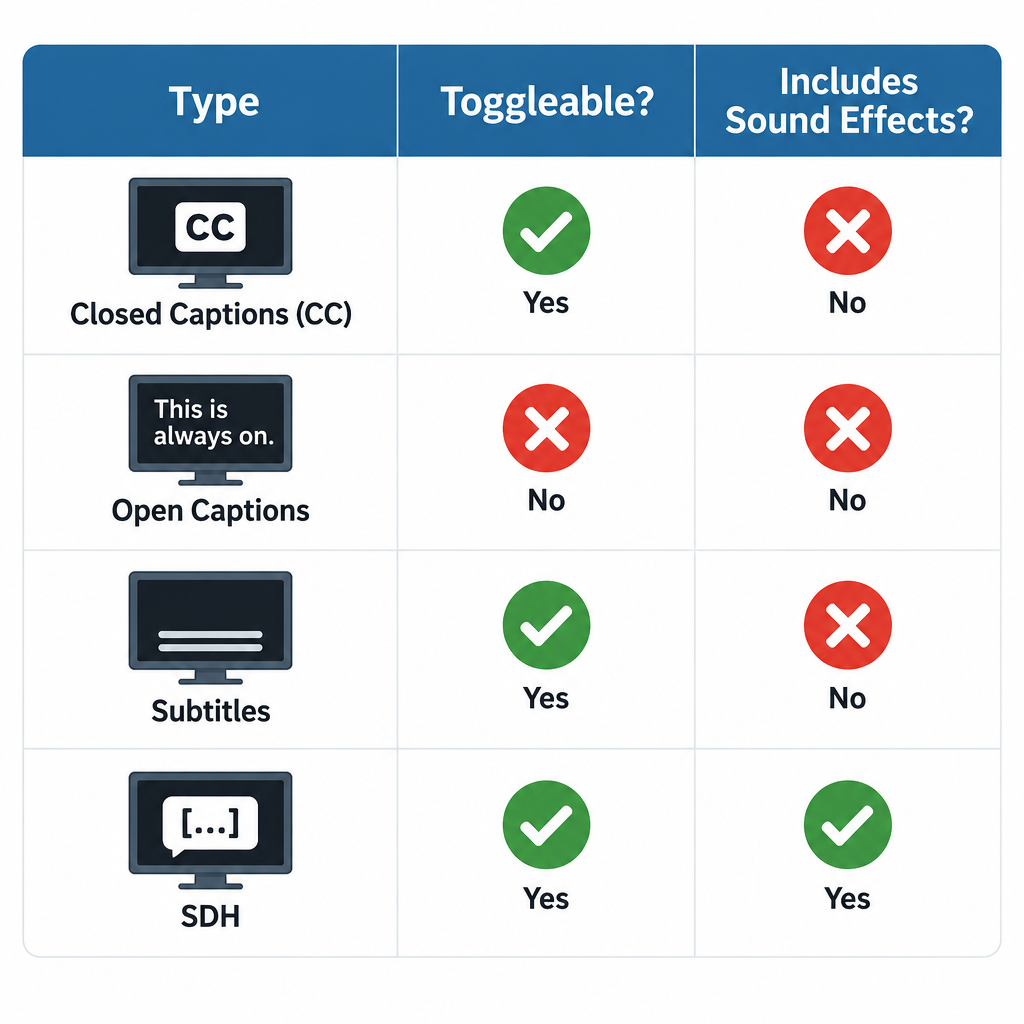
    Feature Closed captions Subtitles SDH Open captions
    Who it’s for Deaf and hard of hearing viewers Hearing viewers who don’t speak the language Deaf and hard of hearing viewers Everyone watching that copy
    Includes sound effects Yes No Yes Usually yes
    Includes speaker IDs Yes Rarely Yes Usually yes
    Translated Usually same language Yes Same language or translated Either
    Can be turned off Yes Yes Yes No, burned into the picture
    Typical home US broadcast and cable TV Foreign films, streaming Blu-ray, DVD, streaming Social video, some cinema showings
    Customisable look Yes on digital TV (CEA-708) Depends on player Depends on player No

    What are closed captions?

    “Closed” means the text is hidden until the viewer turns it on. In the US, broadcast captions travel as data alongside the video signal. Analog television used a standard called CEA-608, which tucked caption data into line 21 of the picture. Digital TV uses CEA-708, which carries the captions in the digital stream and lets viewers change font, size, colour and background.

    Captions have a long history in American TV. PBS aired The French Chef with open captions in 1972, and the first closed-captioned programs reached viewers through set-top decoders in 1980. The Television Decoder Circuitry Act of 1990 then required TV sets 13 inches or larger sold in the US to include a caption decoder, which is why your TV has a captions setting today.

    A typical caption line reads something like:

    [DOG BARKING IN DISTANCE]
    MARIA: Did you hear that?
    ♪ tense music ♪

    What are subtitles?

    Subtitles are a translation tool. They sit at the bottom of the screen, carry only spoken dialogue (plus important on-screen text like signs or letters), and are written in the viewer’s language rather than the speaker’s. Because they serve hearing viewers, they don’t label speakers or describe sounds.

    Streaming services, DVDs and international releases often carry dozens of subtitle languages for the same title. A film’s English subtitle track for its Spanish-language scenes, sometimes called “forced narratives,” is a subtitle in this sense too.

    What is SDH (Subtitles for the Deaf and Hard of Hearing)?

    SDH is a hybrid. It contains everything a caption track contains (sound effects, speaker identification, music cues) but is delivered in a subtitle format instead of the broadcast caption format.

    SDH exists for a practical reason. HDMI connections don’t pass the old line-21 caption data, so a Blu-ray player hooked up over HDMI can’t send traditional closed captions to your TV. Disc authors solved this by putting caption-style text into the subtitle stream instead. Streaming services adopted the same approach, which is why you’ll see menu options like “English (SDH)” or “English [CC]” on Netflix, Disney+ and Max.

    SDH also looks different. It usually uses the same font and positioning as regular subtitles, while 608-style captions often appear as white text on a black background in a fixed position.

    What are open captions?

    Open captions are part of the video image itself. Nobody can turn them off, because they’re baked into the pixels. You see them all the time on TikTok, Instagram Reels and YouTube Shorts, where creators burn in large text because most people scroll with the sound off.

    Some cinemas run open caption screenings of new releases. US movie theaters showing digital movies have also had to provide closed movie captioning devices, such as seat-mounted caption displays or caption glasses, under a Department of Justice rule issued under the ADA in December 2016, with a compliance deadline of June 2, 2018.

    Pros and Cons of Each Option
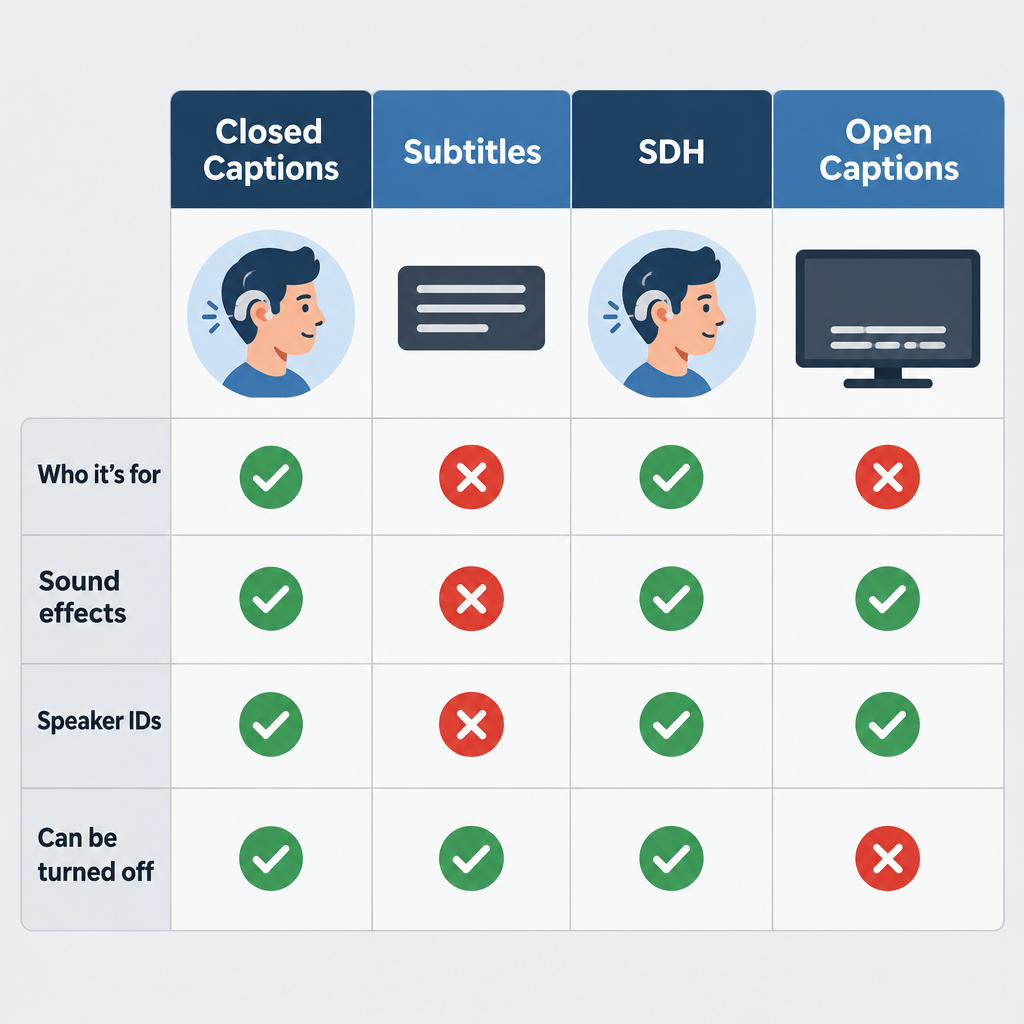
    Four Caption Types Comparison Chart

    No single format wins everywhere. Each has a job it does well and a place where it falls short.

    Closed captions

    • Pros: Full sound information, legally required on most US TV, customisable on digital sets, can be switched off by viewers who don’t want them.
    • Cons: Live captions (news, sports) often lag several seconds behind and contain errors; older 608 captions are limited to 32 characters per line; not passed over HDMI from disc players.

    Subtitles

    • Pros: Clean and unobtrusive, available in many languages, easy to read for hearing viewers, cheaper to produce than full captions.
    • Cons: Useless as an accessibility tool on their own, because they leave out sound effects, music and off-screen speakers.

    SDH

    • Pros: Accessibility content of captions with the flexibility of subtitle formats; works on discs and streaming; often supports multiple languages.
    • Cons: Labelling is inconsistent between services, so you sometimes have to try two tracks to find the full one; styling options depend on the player.

    Open captions

    • Pros: Always visible, impossible to forget to turn on, works on every platform, great for social video and public displays.
    • Cons: Viewers can’t hide them, resize them or change their colour; text can cover important parts of the image; you can’t offer multiple languages from one file.

    Which File Formats Carry Each Type?

    If you publish video, the format you export often decides which kind of text you can deliver. These are the formats you’ll actually encounter.

    Format Extension Typical use Supports styling and positioning
    SubRip .srt YouTube, Vimeo, social uploads, general subtitles Minimal
    WebVTT .vtt HTML5 web video, many streaming players Yes, basic
    Scenarist Closed Caption .scc US broadcast (CEA-608 data), iTunes-era delivery Yes, 608 rules
    TTML / DFXP .ttml, .dfxp, .xml Broadcast and streaming platforms Yes, extensive
    IMSC1 .ttml / .xml Netflix and other premium streaming specs Yes, extensive
    EBU STL .stl European broadcast subtitling Yes
    YouTube SubViewer .sbv YouTube Studio exports Minimal

    A plain SRT file can carry caption-style content, sound tags and all. The format doesn’t stop you from writing good captions. It just can’t hold placement or styling information, so speaker positioning is lost.

    Which One Does Your Delivery Spec Need?

    For anyone producing content, the honest answer is that the platform or the law decides.

    Where your video goes What’s usually required
    US broadcast or cable TV Closed captions meeting FCC quality standards (accuracy, synchronicity, completeness, placement)
    Online video that previously aired on US TV with captions Captions online too, under the 21st Century Communications and Video Accessibility Act (2010)
    Netflix Timed text files to their spec (IMSC1.1/TTML); English subtitle lines capped at 42 characters, two lines max
    US government and many public institutions Captions under Section 508 and the ADA
    YouTube, Vimeo, your website SRT or VTT; captions strongly recommended for accessibility
    Social media (Reels, TikTok, Shorts) Open captions burned in, plus platform auto-captions where available
    International release Translated subtitles per language, plus SDH for the original language

    The FCC’s caption quality rules took effect in 2014. They’re why US broadcasters can be held to standards on accuracy and timing rather than just “some text appeared.”

    Hearing tip

    On streaming services, if you see both “English” and “English (SDH)” or “English [CC]”, pick the SDH or CC track. The plain “English” track is often a subtitle that skips sound effects.

    Where Is the Closed Captioning Button on Your Device?

    The setting is rarely labelled consistently. Some devices say “CC,” some say “Subtitles,” and some bury it in accessibility menus. Menu wording shifts with software updates, so treat these paths as the current starting point.

    Device or app How to turn captions on
    Most TV remotes CC or SUBTITLE button, if present
    Samsung TV Settings > General (or General & Privacy) > Accessibility > Caption Settings
    LG TV Settings > Accessibility > Subtitles
    Roku Press the * (star) button during playback > Closed Captioning
    Amazon Fire TV Press the Menu button (three lines) during playback > Subtitles
    Apple TV Swipe down during playback, or Settings > Accessibility > Subtitles and Captioning
    iPhone and iPad Settings > Accessibility > Subtitles & Captioning > Closed Captions + SDH
    Netflix Speech-bubble icon > Audio & Subtitles
    YouTube CC button in the player, or press C on a keyboard
    Windows 11 Live Captions shortcut: Windows + Ctrl + L

    DirecTV subtitles vs closed captioning

    DirecTV is a common source of confusion. On satellite receivers, the setting you want for TV shows is Closed Captioning, usually reached by pressing INFO during a program and selecting the CC option, or through the menu under Settings and then Accessibility (exact wording varies by receiver model). That turns on the captions the broadcaster sends, with sound effects and speaker labels.

    “Subtitles” on DirecTV usually refers to something else: translated text on foreign-language content, or a separate text track in on-demand titles and the DirecTV Stream app. If you switch on a subtitle option and notice sound cues are missing, go back and look for the closed captioning toggle instead. Separately, SAP (Secondary Audio Program) switches the audio language, which is easy to tap by accident when you’re hunting for captions.

    If you’re trying to get text off the screen rather than on it, our guide on how to turn off closed captioning covers each major device step by step.

    Turn on captions and make them readable (iPhone)

    1. Open Settings, then tap Accessibility.
    2. Tap Subtitles & Captioning.
    3. Switch on Closed Captions + SDH so apps prefer the full caption track.
    4. Tap Style, then choose Large Text or Outline Text.
    5. Tap Custom to set font size and background opacity.

    How to Create Captions and Subtitles

    For creators, the process is similar either way. Write the dialogue, time it to the video, and export the right format. The difference lies in what you include.

    Your main options

    1. Automatic speech recognition (ASR). YouTube Studio generates automatic captions for free on many uploads, and editors such as CapCut and Premiere Pro offer auto-transcription. Accuracy has improved a lot, but names, jargon, accents and crosstalk still trip it up. ASR output also rarely includes sound descriptions, so it’s closer to subtitles than captions until you edit it.
    2. Human captioning services. Professional vendors charge per minute of video, and human work costs several times more than AI. Rates change often, so we haven’t listed specific prices here; get quotes for your exact turnaround time and file format.
    3. Hybrid. Run ASR first, then edit it yourself or pay a human editor to correct it and add sound tags. For most small creators, this is the best value.
    4. Live captioning (CART). For live events, a trained stenographer or real-time captioner produces text on the fly. It’s the gold standard for meetings and lectures where accuracy matters.

    Writing captions that actually work

    • Identify speakers when it isn’t obvious who’s talking, especially off screen.
    • Describe sounds that matter to the story: [glass shatters], [phone vibrates]. Skip ambient noise that carries no meaning.
    • Name the music’s mood or lyrics when they affect the scene: ♪ upbeat jazz ♪.
    • Keep lines short. Broadcast 608 captions top out at 32 characters per line; Netflix allows 42 for English. Shorter lines are easier to read in time.
    • Keep reading speed comfortable. Netflix’s English guidelines cap adult content at about 20 characters per second.
    • Sync tightly. Captions that appear late force viewers to match words to faces after the moment has passed.

    Free built-in tools for viewers

    You don’t always need a creator to do the work. These free features generate captions on your own device.

    Tool Platform Cost Notes
    Live Caption Android (Pixel and many Android 10+ phones) Free Captions any audio playing on the phone, works offline
    Live Captions iPhone 11 and later, recent Macs Free Captions media, calls and FaceTime on device
    Live Captions Windows 11 Free System-wide, works in any app
    Automatic captions YouTube Free Quality varies by audio
    Live captions Microsoft Teams, Zoom, Google Meet Free tiers available Meeting captions, language support varies

    For phone calls specifically, captioned telephone services and the telecommunications relay service offer a different route, with a human or software transcribing the other person’s speech in real time.

    Why the Distinction Matters

    It’s easy to treat this as wordplay. It isn’t.

    For Deaf and hard of hearing viewers, subtitles leave real gaps. A horror movie with subtitles but no captions shows you a character turning around, startled, with no indication that a floorboard creaked. A thriller hides that a phone is ringing in another room. Comedy loses the sarcastic tone that makes a line funny. The World Health Organization estimates more than 1.5 billion people live with some degree of hearing loss, and in the US roughly 15% of adults report some trouble hearing, according to the National Institute on Deafness and Other Communication Disorders. That’s a lot of people being handed half the story when a service labels a bare subtitle track as “CC.”

    For hearing viewers, captions help more than you’d expect. People use them in noisy kitchens, on trains, with sleeping babies nearby, for heavy accents or mumbled dialogue, and while learning a language. Ofcom research in the UK found back in 2006 that around 7.5 million people used TV subtitles, and about 6 million of them had no hearing loss. Captions have become a mainstream feature that happens to be essential for some users.

    For creators and businesses, the label carries legal weight. Delivering translated subtitles when the spec calls for captions can get a file rejected by a broadcaster or platform. In the US, getting it wrong on public-facing video can also raise accessibility complaints under the ADA.

    For anyone noticing they need captions more often, it’s a signal worth acting on. Turning on captions for every show is fine, and plenty of people with typical hearing do it. But if dialogue that used to be clear now sounds muddy, a hearing test is cheap peace of mind. If it leads to hearing aids, ask whether the fitting includes real ear measurement, which checks that the devices deliver the right sound in your actual ear rather than an average one.

    See a professional

    If hearing in one or both ears drops suddenly, over hours or a few days, treat it as an emergency and see a doctor the same day. Gradual trouble following speech is a reason to book a hearing test with an audiologist.

    Which Should You Choose?

    Here’s our verdict, by situation.

    • You’re Deaf or hard of hearing: Choose closed captions on live and broadcast TV, and SDH or the “[CC]” track on streaming and discs. Avoid plain subtitle tracks, which strip out sound information.
    • You’re watching in a language you don’t speak: Choose subtitles. If you also have hearing loss, look for a translated SDH track, which some services offer for major languages.
    • You have typical hearing but struggle with dialogue, accents or a noisy room: Captions or SDH work best because speaker labels help in busy scenes. Plain subtitles are fine if sound tags annoy you.
    • You’re publishing on social media: Use open captions so the text survives autoplay with sound off, and add a closed caption file where the platform allows it.
    • You’re publishing on YouTube or a website: Upload a proper SRT or VTT caption file with sound tags. Don’t rely on unedited auto-captions.
    • You’re delivering to a broadcaster or streamer: Follow the spec exactly. It will name the format and whether it needs captions, SDH, subtitles or all three.

    If we had to pick one default for most viewers, it would be closed captions or SDH. They contain everything subtitles contain, plus the information subtitles leave out.

    FAQ

    Is CC better than subtitles?

    For accessibility, yes. Closed captions include dialogue, speaker identification, sound effects and music cues, so a viewer who can’t hear gets the full experience. Subtitles are better only when you can hear the audio and need a translation, because they’re less cluttered.

    What button is closed captioning?

    On many TV remotes it’s a button marked CC or SUBTITLE. On Roku it’s the * (star) button during playback, on Fire TV the Menu button, and on Apple TV you swipe down during playback. In apps like Netflix and YouTube, look for a speech-bubble or CC icon in the player controls.

    Why are subtitles called CC?

    Mostly habit and branding. US viewers learned to look for the CC symbol, so streaming services often slap “CC” on any text track. In the UK, “subtitles” is the everyday word for both. The label alone doesn’t tell you what’s in the track; sound effects and speaker names are the giveaway.

    Should closed captions be on or off?

    That depends entirely on you. Leave them on if you have hearing loss, watch in noisy places, or simply follow stories better with text. Turn them off if they distract you and you hear dialogue clearly. Neither choice is wrong, and many households switch them per show.

    Does closed captioning mean subtitles?

    Not technically. Both put text on screen, but captions are written for people who can’t hear the audio, while subtitles are written for people who can’t understand the language. In casual conversation, people use the words interchangeably.

    What’s the difference between subtitles and closed captioning on DirecTV?

    On DirecTV receivers, Closed Captioning shows the broadcaster’s full caption track, including sound descriptions. “Subtitles” usually refers to translated text on foreign-language or on-demand content. If you want accessibility captions, use the Closed Captioning setting rather than a subtitle option.
  • How to Turn Off Closed Captioning on Any Device

    How to Turn Off Closed Captioning on Any Device

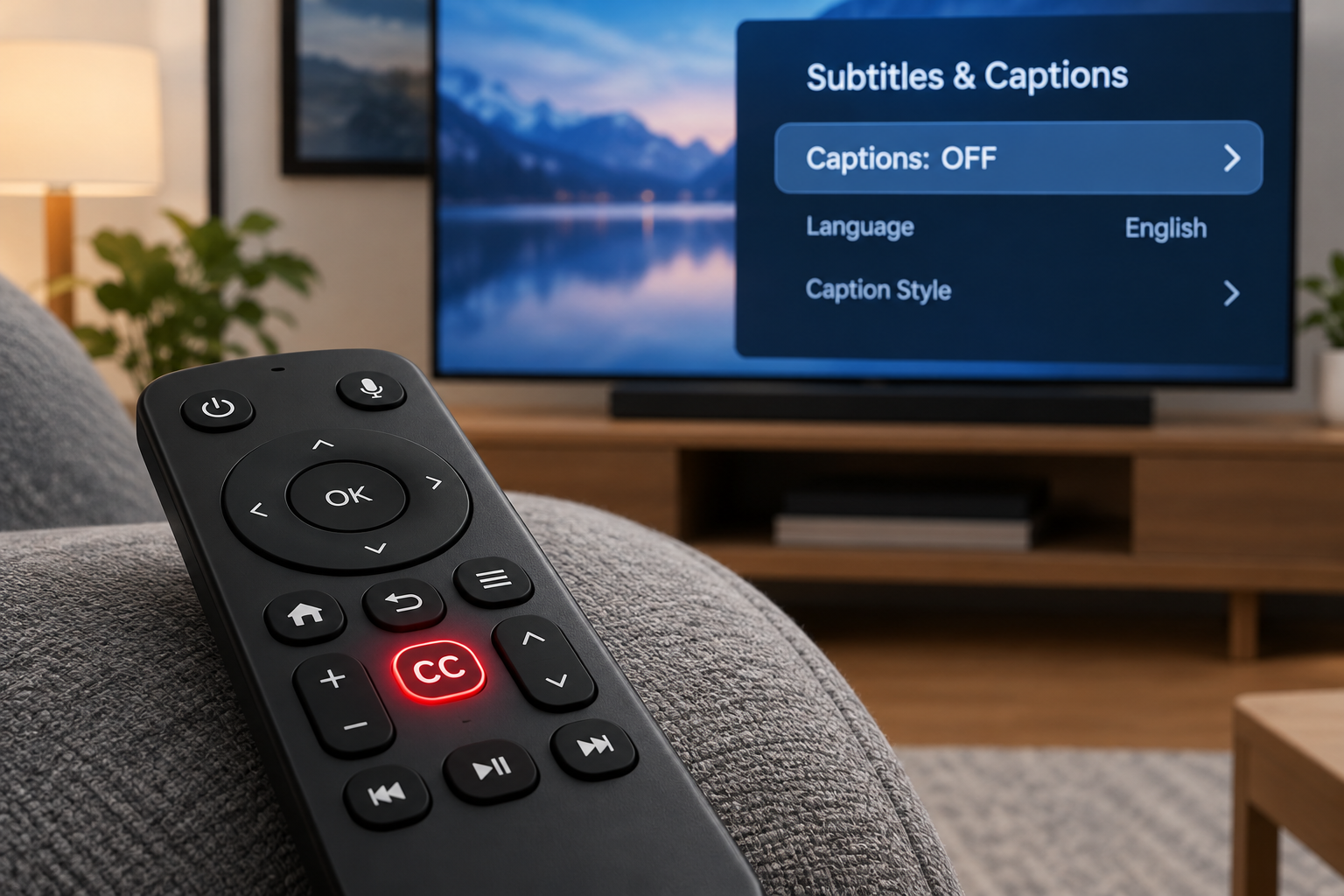
    To turn off closed captioning, open the subtitles or CC menu during playback and select Off. If captions keep coming back, a second switch in your device’s Accessibility settings is turning them on by default. Below you’ll find the exact paths for TVs, streaming players, cable boxes, phones, computers and the big apps.

    Last checked: October 29, 2026. Menu names shift with software updates. If yours looks different, check Accessibility first.

    The Quick Fix That Works Almost Everywhere

    Turn captions off in under a minute

    1. Start playing any video.
    2. Press the CC, subtitles or speech-bubble button.
    3. Select Off under Subtitles or Captions.
    4. If captions return later, open the device’s Settings, then Accessibility.
    5. Turn off the Captions or Closed Captioning setting there too.

    Most people only need step 3. Steps 4 and 5 fix the stubborn cases.

    Why Captions Keep Coming Back

    Captions can be switched on in several layers at once. Turning off one layer leaves the others active. These are the usual culprits:

    • The TV and the cable box both have captions on. Each one can draw its own captions on screen.
    • A device-level preference overrides the app. On iPhone and Apple TV, the Closed Captions + SDH setting tells apps to show captions every time.
    • “On mute” mode. Some TVs, including Roku models, show captions automatically whenever you mute.
    • Profiles. Netflix and other services save caption choices per profile. A family member’s choice won’t carry over to yours.
    • Updates. A firmware or app update can occasionally reset your settings.

    Smart TVs

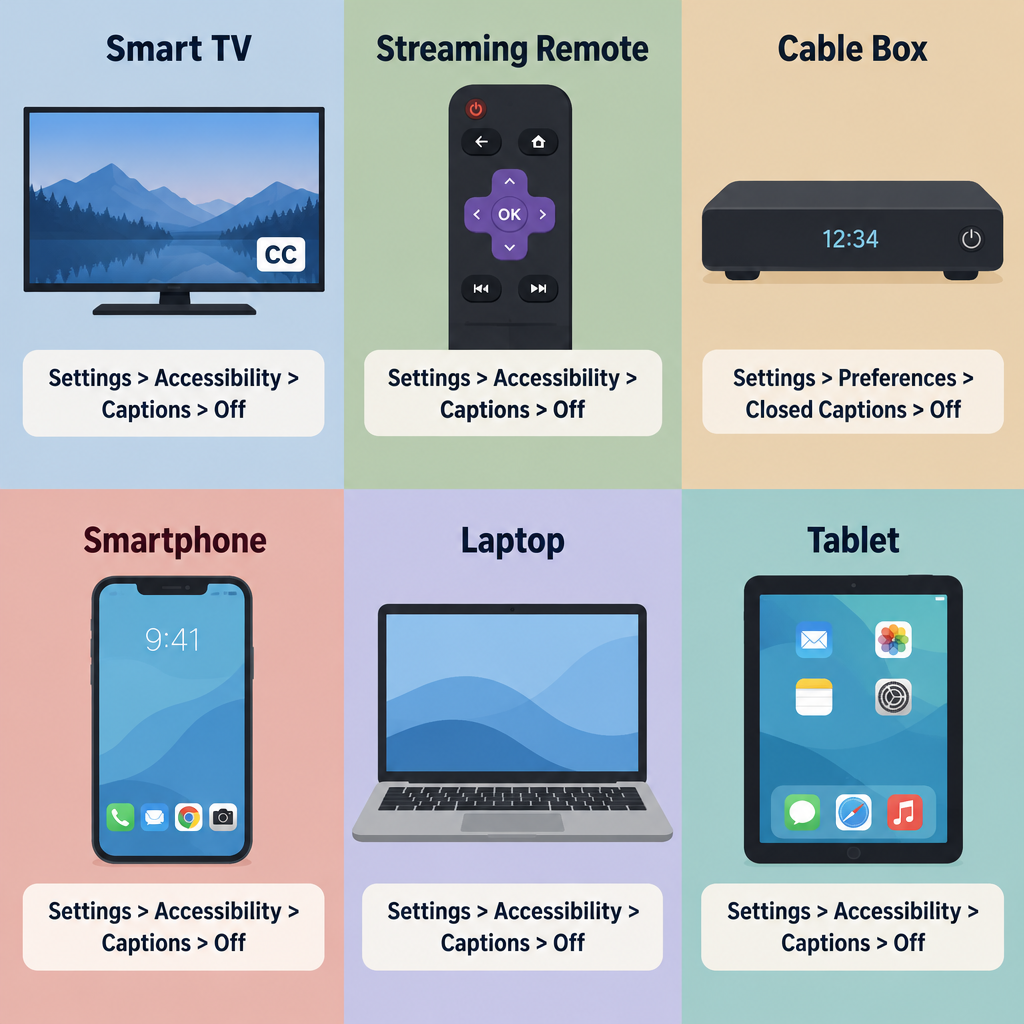
    Device Settings Paths Chart

    Your TV’s own caption setting sits in Accessibility. Use the path for your brand.

    TV brand or platform Settings path
    Samsung Settings > General (or General & Privacy) > Accessibility > Caption Settings > Caption off
    LG Settings > All Settings > Accessibility > Subtitles off (older sets: General > Accessibility)
    Vizio Menu > Accessibility > Closed Captions > Off
    Roku TV (TCL, Hisense and others) Settings > Accessibility > Captions mode > Off
    Google TV (Sony, TCL, Hisense) Settings > System > Accessibility > Captions > turn off
    Fire TV Edition (Insignia, Toshiba) Settings > Accessibility > Closed Captioning > Off

    On many Samsung remotes, pressing and holding the Mute button opens Accessibility Shortcuts. That’s a quick way to reach the caption toggle.

    Streaming Players

    Roku. Press the star (*) button during a show to change captions for that video. For the default, go to Settings > Accessibility > Captions mode. You’ll see four options: Off, On always, On replay and On mute. Pick Off. If you choose On mute, captions will appear only while sound is muted.

    Apple TV. Go to Settings > Accessibility > Subtitles and Captioning (on older models, Settings > General > Accessibility > Subtitles and Captioning) and turn off Closed Captions and SDH. During playback, swipe down on the Siri Remote to change subtitles for one video.

    Amazon Fire TV. Go to Settings > Accessibility > Closed Captioning and switch it off. During playback, the Menu button opens subtitle options.

    Google TV Streamer and Chromecast with Google TV. Go to Settings > System > Accessibility > Captions and turn them off.

    Cable and Satellite Boxes

    Boxes from Xfinity, Spectrum, DirecTV and others have their own caption setting. It’s usually under Menu > Settings > Accessibility, or behind a CC or Info button on the remote. Xfinity’s voice remote also responds to “turn off closed captioning.”

    You may still see captions after you turn them off on the box. If so, they’re coming from the TV. Turn them off in the TV’s Accessibility menu as well.

    Streaming Apps

    Netflix, Prime Video, Disney+, Hulu, HBO Max, Peacock and Paramount+ all work the same way. Pause or tap the screen, then select the speech-bubble or Audio & Subtitles icon. Under Subtitles, choose Off.

    The app usually remembers your choice for that profile on that service. If captions return on Apple devices, the device-level setting is the cause (see below).

    YouTube

    • Single video: click the CC button on the player, or press C on your keyboard.
    • Mobile app: tap the video, then the gear icon > Captions > Turn off captions.
    • Account default (desktop): click your profile picture > Settings > Playback and performance. Uncheck “Always show captions.”

    On YouTube TV, open the player options and select the CC icon to switch captions off.

    Phones and Tablets

    iPhone and iPad. Go to Settings > Accessibility > Subtitles & Captioning and turn off Closed Captions + SDH. If text is transcribing all audio on screen, that’s Live Captions. Turn it off under Settings > Accessibility > Live Captions.

    Android. Go to Settings > Accessibility > Caption preferences and turn off Show captions. On Samsung phones, look under Settings > Accessibility > Hearing enhancements > Subtitle settings.

    Android’s Live Caption is a separate feature. To turn it off, press a volume button and tap the Live Caption icon in the volume panel. You can also switch it off in Accessibility settings.

    Computers and Media Players

    Windows 11. Live captions turn on and off with Windows + Ctrl + L. The full settings are under Settings > Accessibility > Captions. Captions inside a video are controlled by the player or website, not Windows.

    Mac. Go to System Settings > Accessibility > Captions and turn off “Prefer closed captions and SDH.” Live Captions has its own toggle under System Settings > Accessibility > Live Captions.

    Chrome. If every video and call shows captions, Chrome’s Live Caption is probably on. Go to Chrome’s menu > Settings > Accessibility and turn off Live Caption.

    Media players:
    – VLC: Subtitle > Sub Track > Disable
    – QuickTime Player: View > Subtitles > Off
    – Windows Media Player: select the CC button and choose Off

    Change Captions Instead of Removing Them

    Many people turn off captions because they’re too large or in the wrong language. You can fix both instead.

    • Language: in the app’s subtitle menu, choose the language you want. You can also select an audio track without subtitles.
    • Size and style: most TVs and phones let you change caption font, size, color and background. Look in the same Accessibility menu covered above.

    For more on how closed captioning works on TV and online, see our explainer.

    Hearing tip

    If a family member relies on captions, give them their own streaming profile. Then their settings and yours won’t keep overriding each other.

    Captions You Can’t Turn Off

    Some text is part of the video itself, so no setting will remove it.

    • Open captions are burned into the picture. Some social clips and older broadcasts use them.
    • Forced narrative subtitles translate brief foreign-language lines or on-screen signs. They appear even with subtitles off, because the creator considers them part of the story.

    See a professional

    If you’ve started needing captions because speech sounds muffled, book a hearing test with an audiologist. Sudden hearing loss in one or both ears is a medical emergency, so get same-day care.

    FAQ

    How do I turn off closed captioning with my TV remote?

    Press the CC or subtitles button during playback and select Off. If your remote has no CC button, press Menu or Settings and open Accessibility.

    Why do captions come back after I shut them off?

    Usually a second layer is still on. That’s often the cable box, a device-level preference, or an “On mute” mode. Turn captions off in each layer you use.

    How do I remove closed captioning on YouTube for good?

    On desktop, go to Settings > Playback and performance and uncheck “Always show captions.” Also check your phone’s or TV’s caption setting, because YouTube follows it.

    Are closed captions the same as subtitles?

    Not quite. Closed captions include sound cues like [door slams] for viewers who are Deaf or hard of hearing. Subtitles usually show dialogue only. Most menus manage both from the same place.

    How can I turn off closed captioning on Netflix everywhere?

    Netflix saves your choice per profile, so switch subtitles off once in your profile. If captions persist on an Apple device, turn off Closed Captions + SDH in that device’s Accessibility settings.

  • What Closed Captioning Is and How It Works on TV and Online

    What Closed Captioning Is and How It Works on TV and Online

    Closed captioning is on-screen text that shows a program’s spoken dialogue and important sounds. “Closed” means viewers can switch it on or off, unlike open captions, which are burned into the video. Below we explain how captions are made, how they reach your TV, phone, or browser, what US law requires, and what to do when they fail.

    Last updated: October 29, 2026.

    Closed Captioning Definition and Meaning

    Closed captions are a text version of a video’s audio. They cover what people say, who is saying it when that isn’t obvious, and the non-speech sounds that carry meaning: a phone ringing offscreen, [ominous music], [crowd cheering], [door slams]. That last part separates captions from simple subtitles.

    The word “closed” is about control, not content. The captioned text travels alongside the video as hidden data, and your TV or player decodes it only when you press CC or turn captions on in settings. Open captions are permanent and part of the picture itself.

    Captions began as an accessibility tool for people who are Deaf or hard of hearing, and that is still their most important job. The audience is much larger now. Captions help people watching in a loud bar or next to a sleeping baby, viewers learning English, anyone with auditory processing difficulties, and everyone who has rewound a scene to catch a mumbled line.

    Captions, Subtitles, and SDH Compared

    These terms get mixed up on streaming menus, so here is how they actually differ.

    Type Can you turn it off? Includes sound effects and speaker IDs? Main purpose
    Closed captions (CC) Yes Yes Access for Deaf and hard of hearing viewers
    Open captions No, burned into video Usually yes Access where viewers can’t control settings
    Subtitles Yes No, dialogue only Translation for hearing viewers
    SDH (Subtitles for the Deaf and Hard of Hearing) Yes Yes Caption-style text in subtitle format, common on streaming and discs
    Forced subtitles No, shown automatically No Translating brief foreign-language lines or signs

    If a streaming service offers both “English” and “English (CC)” or “English [SDH],” we recommend the CC or SDH track for anyone with hearing loss. The plain “English” track often leaves out sound cues.

    How Closed Captioning Works

    Captions vs Subtitles Comparison

    How captions are created

    There are two broad ways to produce captions, and they look different on screen.

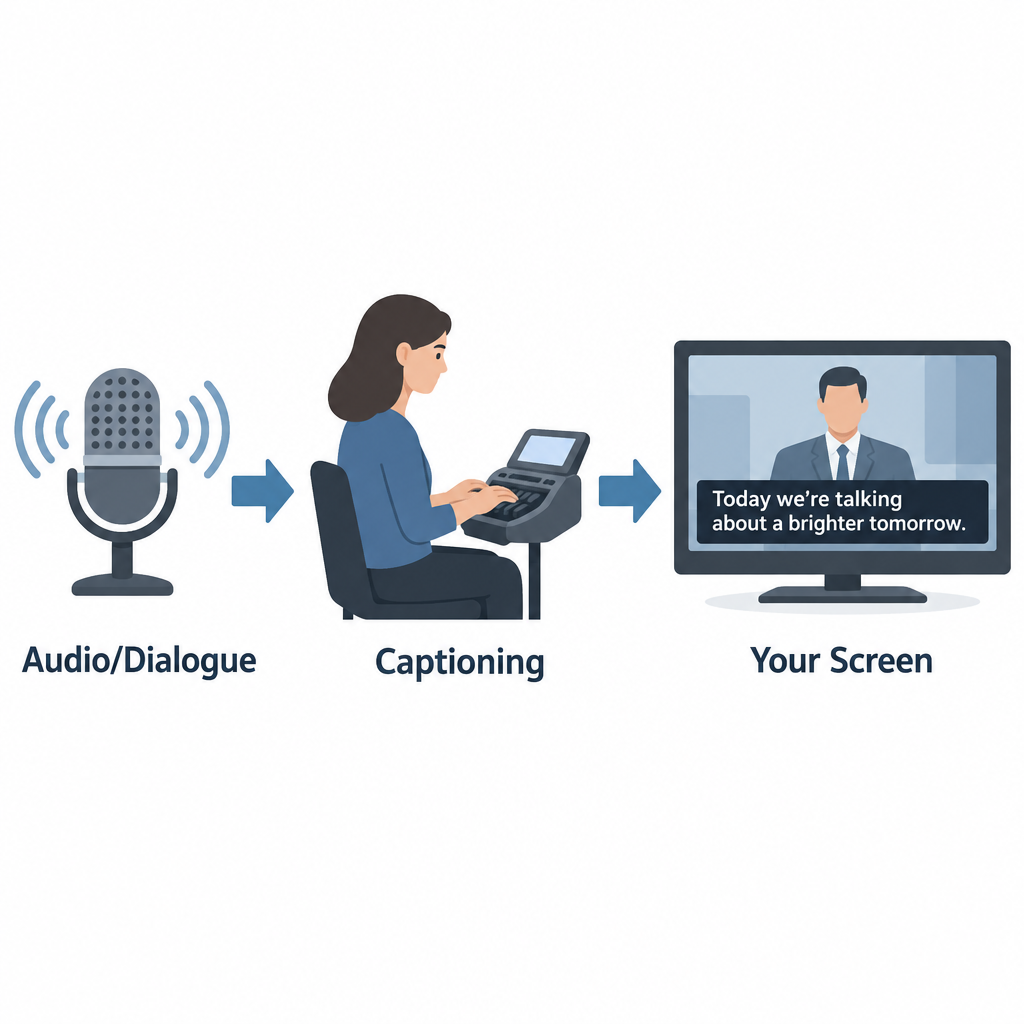
    Offline (prerecorded) captioning is done after a program is finished. A captioner transcribes the audio, times each caption to the frame, positions text so it doesn’t cover faces or on-screen graphics, and adds sound descriptions. Movies, scripted series, and most streaming content are captioned this way. Done well, offline captions are near-perfect and appear in pop-on blocks that match each line of dialogue.

    Real-time (live) captioning happens as the program airs. Trained stenocaptioners use a stenotype machine to write phonetic chords that software turns into text, often at well over 200 words per minute. Voice writers repeat the audio into speech recognition software trained on their own voice. More and more, broadcasters and platforms use automatic speech recognition (ASR) with no human in the loop. Live captions usually roll up line by line and lag a few seconds behind the speaker, which is why news and sports captions can feel delayed or contain errors.

    How captions reach your television

    Analog US television carried captions on line 21 of the vertical blanking interval, a part of the signal you never saw. That standard, now called CEA-608, allowed only basic white text on a black box.

    Digital broadcasting uses CEA-708, which travels inside the digital stream and lets viewers change font, size, color, background, and opacity. Most modern TVs, cable boxes, and streaming devices still support both, since lots of content carries legacy 608 data alongside 708.

    How captions work online

    Online video usually keeps captions in a separate text file synced to timecodes. Common formats include SRT (simple and widely supported), WebVTT (the web standard for HTML5 video), and TTML or DFXP (used by many broadcasters and streaming services). The player reads the file and draws captions over the video, which is why online caption styling depends on your app and device settings.

    A Short History of Closed Captioning in the US

    Year Milestone
    1972 PBS airs The French Chef with open captions, an early captioned national broadcast
    1980 Closed captioning debuts on ABC, NBC, and PBS; viewers need a set-top decoder
    1982 Real-time captioning makes live captioned TV possible
    1990 Television Decoder Circuitry Act passes
    1993 TVs 13 inches or larger sold in the US must include caption decoders
    1996 Telecommunications Act leads to FCC rules requiring most TV programming to be captioned
    2010 21st Century Communications and Video Accessibility Act (CVAA) signed
    2014 FCC adopts caption quality standards for TV
    2024 FCC adopts rules requiring caption display settings to be readily accessible on devices

    FCC Closed Captioning Rules

    How Captions Reach Your Screen

    In the US, the Federal Communications Commission requires most television programming to carry closed captions. This applies to broadcast stations, cable and satellite providers, and other video programming distributors. Rules cover English programming and Spanish-language programming.

    Caption quality standards

    Since 2014, FCC rules hold TV captions to four quality standards:

    • Accuracy: Captions match the spoken words, in their original language, and convey background noises and speaker identities.
    • Synchronicity: Captions appear at the same time as the matching audio, at a speed viewers can read.
    • Completeness: Captions run from the start of the program to the end.
    • Placement: Captions don’t block important visual content such as faces, on-screen text, or graphics.

    The FCC holds prerecorded programming to a higher bar than live programming, since live captioners can’t preview what’s coming.

    Captions on online video

    The CVAA extended captioning to the internet, but with a key limit. Video shown online must have captions if it aired on US television with captions. This covers full episodes on network apps and streaming services, and it now also covers clips of those shows posted online. Web-only content that never aired on TV, like most original YouTube videos, isn’t covered by these FCC rules, though other laws such as the ADA can still apply to certain organizations.

    Exempt Programming

    Not every program needs captions. The FCC exempts several categories. The main ones:

    Exemption What it covers
    Overnight hours Programming shown between 2 a.m. and 6 a.m. local time
    Short advertisements Ads under five minutes long
    Short promos and PSAs Promos, interstitials, and PSAs under 10 minutes (federally funded PSAs must be captioned)
    Small channels Channels with under $3 million in annual gross revenue
    New networks A network’s first four years of operation
    Primarily textual programs Programs where the content is already on screen as text
    Local non-news content Locally produced programming with no repeat value
    Local instructional content Instructional programming produced locally by public TV stations for students

    Distributors can also petition the FCC for an exemption if captioning would be economically burdensome. These petitions are reviewed case by case and aren’t granted automatically.

    How to Turn On Closed Captions

    Settings paths change with software updates, but these were the standard locations as of our last check.

    Device or app Where to find captions
    iPhone and iPad Settings > Accessibility > Subtitles & Captioning > Closed Captions + SDH
    Android phones Settings > Accessibility > Caption preferences (wording varies by maker)
    Apple TV Settings > Accessibility > Subtitles and Captioning
    Roku Settings > Accessibility > Captions mode
    YouTube CC button on the player, or press C on a keyboard
    Netflix Audio & Subtitles icon during playback
    Windows 11 (live captions for any audio) Press Windows + Ctrl + L

    Turn on captions on most TVs

    1. Press the CC or Subtitle button on your remote, if it has one.
    2. If not, open Settings and look for Accessibility.
    3. Select Closed Captions or Captions and set it to On.
    4. Choose CC1 for standard English captions on broadcast TV.
    5. Open Caption Style or Digital Caption Options to change size and color.

    Hearing tip

    If captions are on but you see nothing on a cable box, the TV and box may both be trying to decode them. Turn captions on in one place only, usually the cable box or streaming device, and off on the TV.

    Phones and computers now offer live captions generated on the device itself. Android’s Live Caption, iPhone’s Live Captions, Windows Live Captions, and Chrome’s Live Caption can caption almost any audio, including video calls and podcasts with no captions of their own. They’re automatic, so expect mistakes with names, accents, and crosstalk.

    Common Closed Captioning Messages and Problems

    Many people search for a “closed captioning message” after seeing something odd on screen. The most common ones:

    • “Captions not available” or a greyed-out CC button: the program has no caption track, or the app isn’t receiving it.
    • CC1, CC2, and similar options: different caption channels. CC1 is almost always the main English captions; CC2 or CC3 often carry Spanish.
    • “Captioning made possible by…”: a sponsor credit, not an error.
    • [NO AUDIO] or [INAUDIBLE]: the captioner couldn’t hear or understand the audio.
    • Garbled letters or repeated words: usually a live captioning error or a signal problem.

    Other problems we hear about often: captions running far behind dialogue, captions cutting off before a show ends, text covering the score in a sports game, and captions disappearing after a channel change or software update.

    What to Do If You Experience Closed Captioning Problems

    Start with the basics. Restart the TV and set-top box, confirm captions are on in only one device, and check whether the problem affects one channel or all of them. If one channel or program keeps failing, it’s a distributor problem, not your equipment.

    Filing a complaint or seeking assistance

    For TV captioning problems in the US, you can complain either to your video programming distributor (your cable, satellite, or streaming TV provider) or directly to the FCC. Distributors are required to publish contact information for captioning complaints, often on their website and billing statements.

    File within 60 days of the problem. Include the channel, program name, date and time, your provider, and a description of what went wrong. A distributor that receives your complaint generally must respond within 30 days. Complaints to the FCC go through its Consumer Complaint Center, which accepts complaints online and by phone, and the agency also takes complaints in ASL by video call.

    For captioned phone calls, which follow separate rules, the right route is telecommunications relay service, including captioned telephone services.

    Who Benefits From Closed Captioning

    For people who are Deaf or hard of hearing, captions are often the difference between full access to a program and guessing. Many people with hearing aids or cochlear implants use captions too, because TV audio mixes music, effects, and quick dialogue in ways that are hard to follow even with good amplification.

    See a professional

    If you notice you suddenly need captions to follow speech you used to hear easily, book a hearing test with an audiologist. Sudden hearing loss in one or both ears is a medical emergency, so see a doctor the same day.

    How Closed Captioning Will Evolve

    Automatic speech recognition is reshaping captioning quickly. It’s cheap and instant, so far more content now has captions than ever before. Quality is the catch. ASR still struggles with names, technical terms, overlapping speakers, and accented speech, and it rarely adds meaningful sound descriptions without human editing.

    We expect the best results to keep coming from hybrid workflows, where ASR drafts and trained captioners correct. On the device side, the FCC’s 2024 order on readily accessible caption settings should make it easier to find and customize captions without digging through menus. Broadcast standards are moving too, with ATSC 3.0 (NextGen TV) supporting more flexible caption formats.

    FAQ

    What does closed captioning mean?

    It means on-screen text showing a program’s dialogue and important sounds that viewers can turn on or off. “Closed” refers to that on-off control.

    What is the difference between closed and open captioning?

    Closed captions are hidden until you activate them. Open captions are burned into the video and appear for everyone, with no way to hide them.

    Are subtitles the same as closed captions?

    No. Subtitles usually show dialogue only and assume the viewer can hear. Closed captions also describe sound effects, music, and who is speaking.

    Why are live TV captions delayed and full of errors?

    Live captions are created in real time by stenocaptioners, voice writers, or speech recognition software. They can only caption what they’ve already heard, which adds a lag of a few seconds and leaves no time to fix mistakes.

    Does every online video have to be captioned?

    No. FCC rules require captions on online video only if it aired on US television with captions. Other laws can require captions for specific organizations, such as government agencies and some businesses.

    Is closed captioning free to use?

    Yes. Viewers pay nothing extra to turn on captions on TV, streaming services, or built-in phone and computer features.